

 Guides
 API reference
 MCP server
 Changelog
https://api-prod.heliyos.ai. Plain HTTP is not accepted.
What a key can do
A few account actions are not available to API keys and answer
403 FORBIDDEN_ACTION: managing API keys themselves, and some team changes. Each endpoint’s page says when this applies.
Create a key
1
Open the API keys settings
In Heliyos, go to Settings → API keys.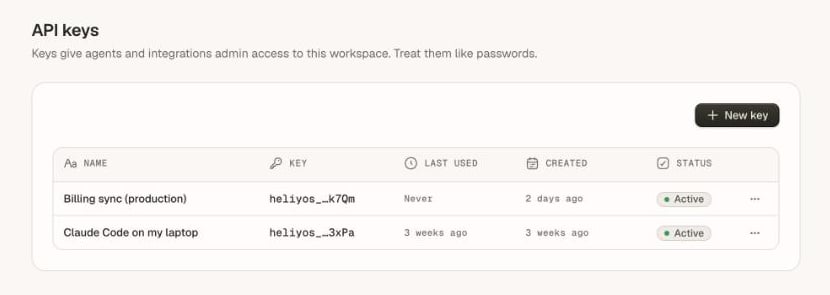
2
Name the key
Click New key. Give it a name that says where it runs, such as “Billing sync (production)” or “Claude Code on Priya’s laptop”. Names are up to 64 characters.
3
Set an expiry
Pick an expiry for anything that is not a long-running integration.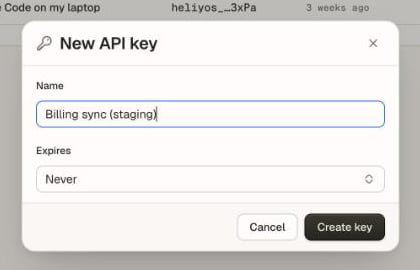
4
Copy the key
Click Create key and copy it. It starts with
heliyos_ and is shown once. Heliyos stores only a hash of it, so nobody, including Heliyos support, can show it to you again. If you lose it, revoke it and create another.Keep keys safe
- One key per system and person. Separate keys let you revoke one without breaking the others, and the list shows when each was last used.
- Store keys in a secret manager or environment variables, never in source code.
- Set an expiry on keys for scripts, trials and laptops.
- Call the API from your servers only. The API is not meant to be called from a browser with a key.
Rotate a key
- Create a new key with a clear name.
- Deploy it to the system that uses the old one.
- Confirm requests succeed with the new key.
- Revoke the old key in Settings → API keys. Revocation takes effect right away. Removing or demoting the key’s creator takes effect within about a minute.
Errors
Repeated requests with keys Heliyos does not recognise are limited to 20 a minute per IP address.